Call of Duty 4 Custom Maps & Fastfiles
This package contains the CoD Xe fastfiles needed for Call of Duty 4, together with a collection of custom maps. Keeping them in one download makes sure the fastfiles and maps stay compatible.
What You Need
Section titled “What You Need”- A genuine USA / Europe copy of Call of Duty 4: Modern Warfare
- Call of Duty 4 TU4
- The latest CoD Xe plugin
Install CoD Xe before continuing:
Download and Install
Section titled “Download and Install”Download CoD Xe IW3 Fastfiles v0.1.0
- Extract the
.zip. - Open the extracted
codxe-iw3-fastfiles-v0.1.0folder. - Copy its
_codxefolder into your Call of Duty 4 game folder and allow it to merge with your existing_codxefolder.
Do not delete or replace your existing _codxe folder.
When installed correctly, the relevant files should look like this:
Directory
Call of Duty 4 - Modern WarfareDirectory_codxe
Directoryzone
- codxe_common_mp.ff
- codxe_ui_mp.ff
Directoryusermaps
Directorymp_4nuketown
- mp_4nuketown.ff
- mp_4nuketown_load.ff
Directorymp_mw2_rust
- mp_mw2_rust.ff
- mp_mw2_rust_load.ff
- …
- default_mp.xex
- …
Required Fastfiles and Optional Maps
Section titled “Required Fastfiles and Optional Maps”The fastfiles in _codxe/zone are required for CoD Xe on Call of Duty 4. Keep
codxe_common_mp.ff and codxe_ui_mp.ff installed, even if you do not want to
play custom maps.
The maps in _codxe/usermaps are optional. You can leave them installed to
play them, or remove individual map folders later if you need the storage.
Use Custom Maps
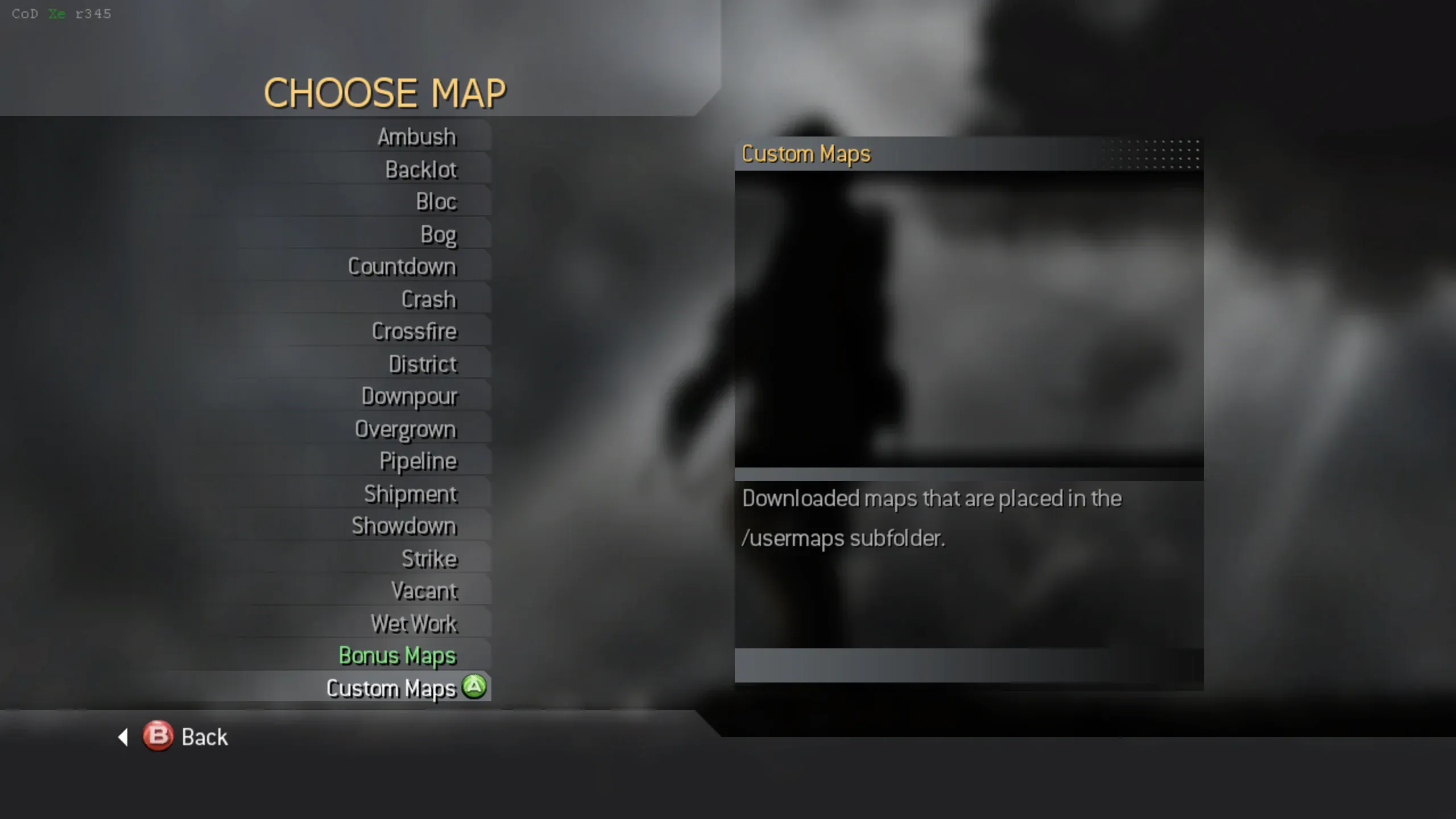
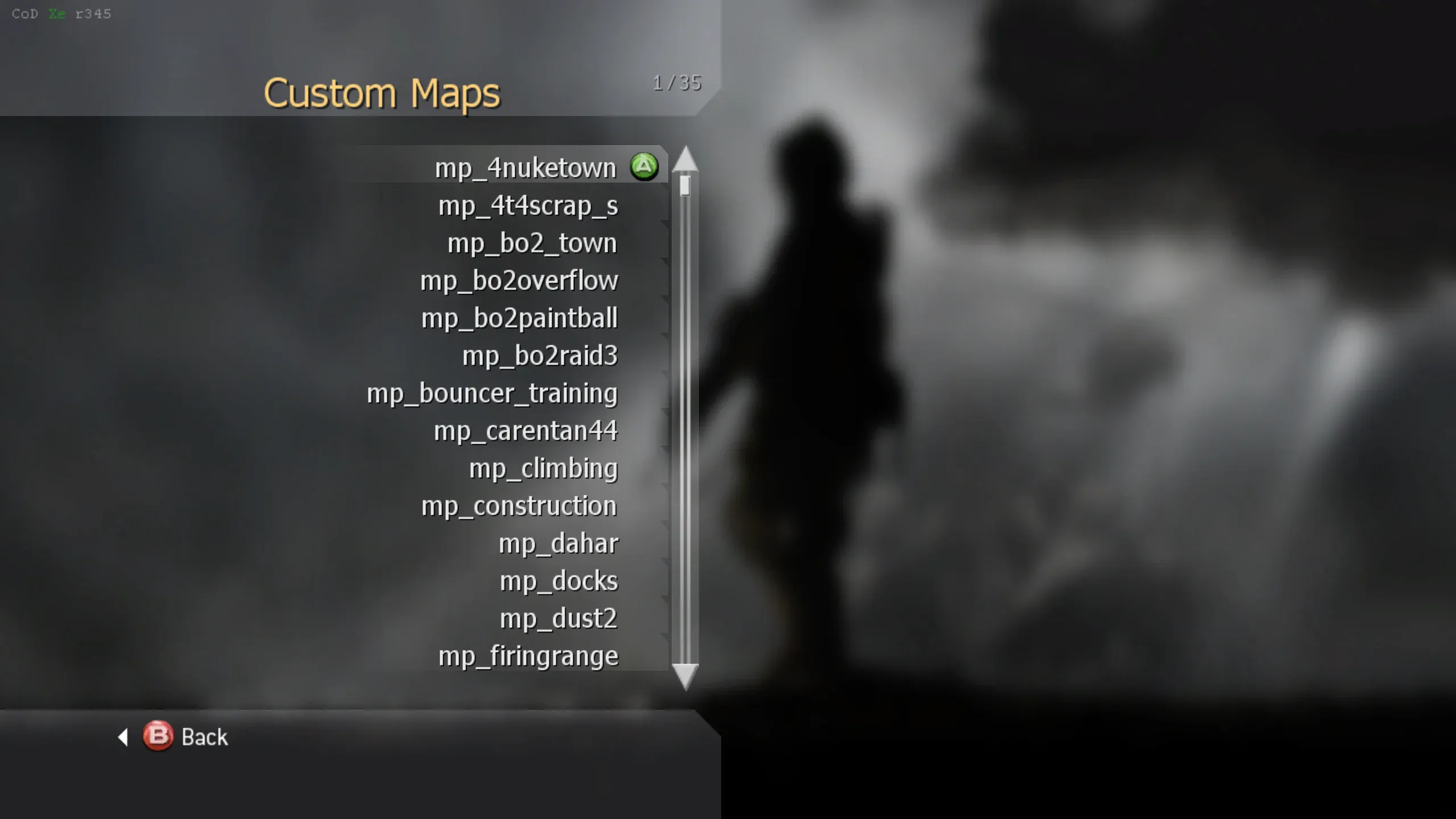
Section titled “Use Custom Maps”CoD Xe automatically adds maps in _codxe/usermaps to the map picker. The
Custom Maps list updates when map folders are added or removed.
- When choosing a map for a System Link or private match, select Custom Maps.
- Select a map from the scrollable list.
Next Step
Section titled “Next Step”Install IW3 Bot Warfare to add bots to Call of Duty 4 multiplayer.